A good image prompt does more than describe a subject. It gives the model a visual direction, a mood, a camera angle, a lighting plan, and enough texture to make the output feel intentional. This May 8 prompt roundup highlights five strong creative ideas originally designed for Black Forest Labs’ FLUX.1 image model, while making them easier to reuse inside a modern Fylia AI workflow.
If you want to test or remix these ideas, start with the Fylia AI Image Generator. You can use the prompts as written, simplify them for faster experimentation, or adjust the style details for posters, social visuals, thumbnails, tattoos, fantasy illustrations, or realistic character studies.
Image Prompt 1: Look at All Those Turkeys
Prompt: Epic wide shot: Thousands of wild turkeys dominate an expansive autumnal landscape. Golden hour lighting bathes the scene, creating warm glows and long, dappled shadows. The frame is densely packed from foreground to distant horizon with turkeys: some strutting, others pecking, a few observing the viewer. Rich palette of bronze, rust, deep greens, and burnt orange. Ultra-detailed feathers, high-resolution. Impressionistic vastness meets photorealistic detail. Comical, slightly overwhelming, yet majestic atmosphere. 16K, hyperrealistic rendering.
Why it works: This prompt succeeds because it turns a funny subject into an epic visual scene. The contrast between “thousands of wild turkeys” and “majestic atmosphere” gives the model a clear creative tension. The golden-hour lighting, autumn palette, and wide-shot framing also help the image feel bigger than a simple animal prompt.
Best use cases: Use this structure for surreal wildlife posters, comic editorial illustrations, holiday-themed images, meme-style visuals, and nature scenes with exaggerated scale.
Try it with: Fylia AI Image Generator
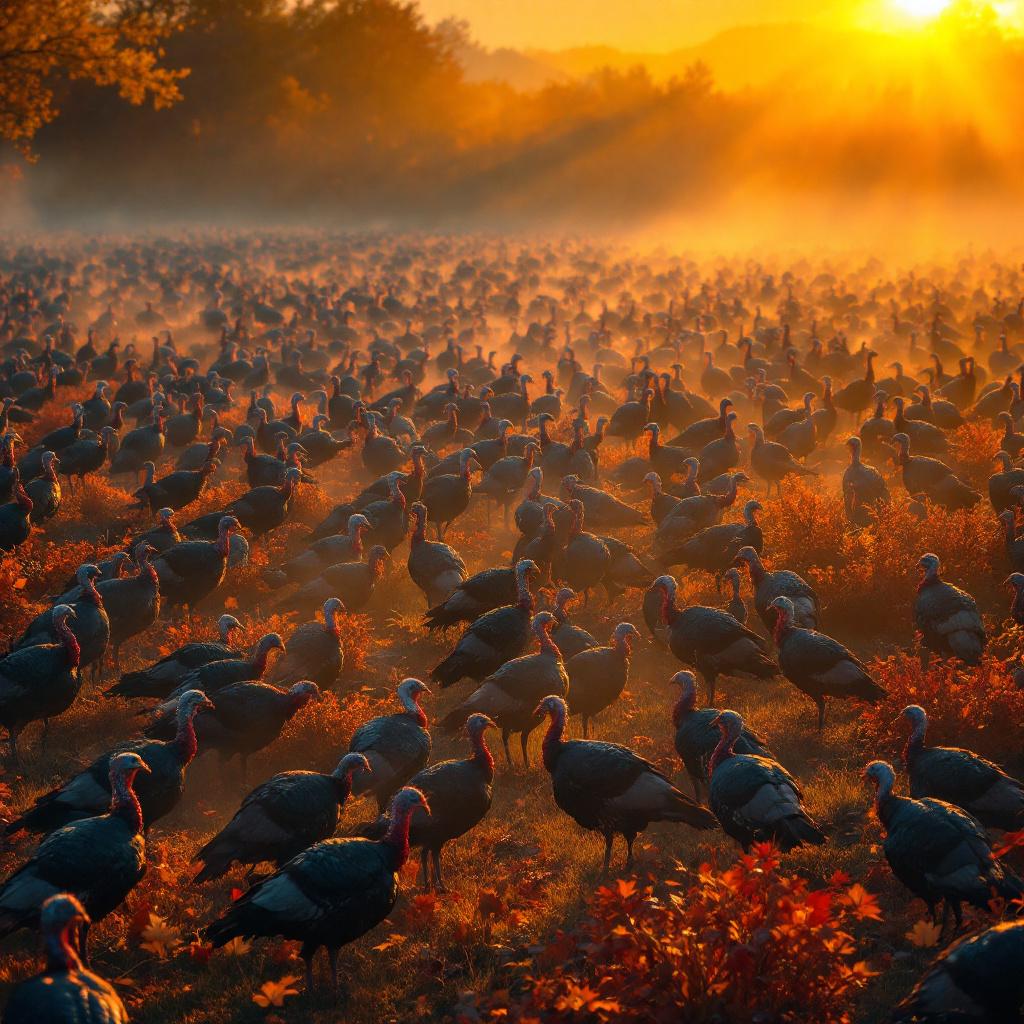
Image Prompt 2: Owl
Prompt: A majestic Great Horned Owl, perched alertly on a gnarled, moss-covered ancient oak branch. Its piercing golden eyes are wide, head slightly tilted, ear tufts prominent. Silvery moonlight filters through a dense, primeval forest canopy, casting dramatic shadows and highlighting individual feathers. Art Style: Masterpiece fantasy illustration. Colors: Cool blues, deep indigos, shimmering silvers, with warm golden accents. Mood: Mystical, serene, ancient wisdom. Angle: Medium shot, slightly low angle, centered, allowing the owl to dominate the frame. Additional: Ethereal mist swirls gently, subtle magical light motes drift around, enhancing the scene's mystique.
Why it works: The prompt is strong because it gives the owl character, environment, color, and atmosphere. Details like “piercing golden eyes,” “silvery moonlight,” and “ethereal mist” help create a clear fantasy illustration rather than a generic bird image.
Best use cases: Use this format for fantasy wildlife, book covers, oracle-card art, nature posters, magical creature studies, and cinematic animal portraits.
Try it with: Fylia AI Image Generator
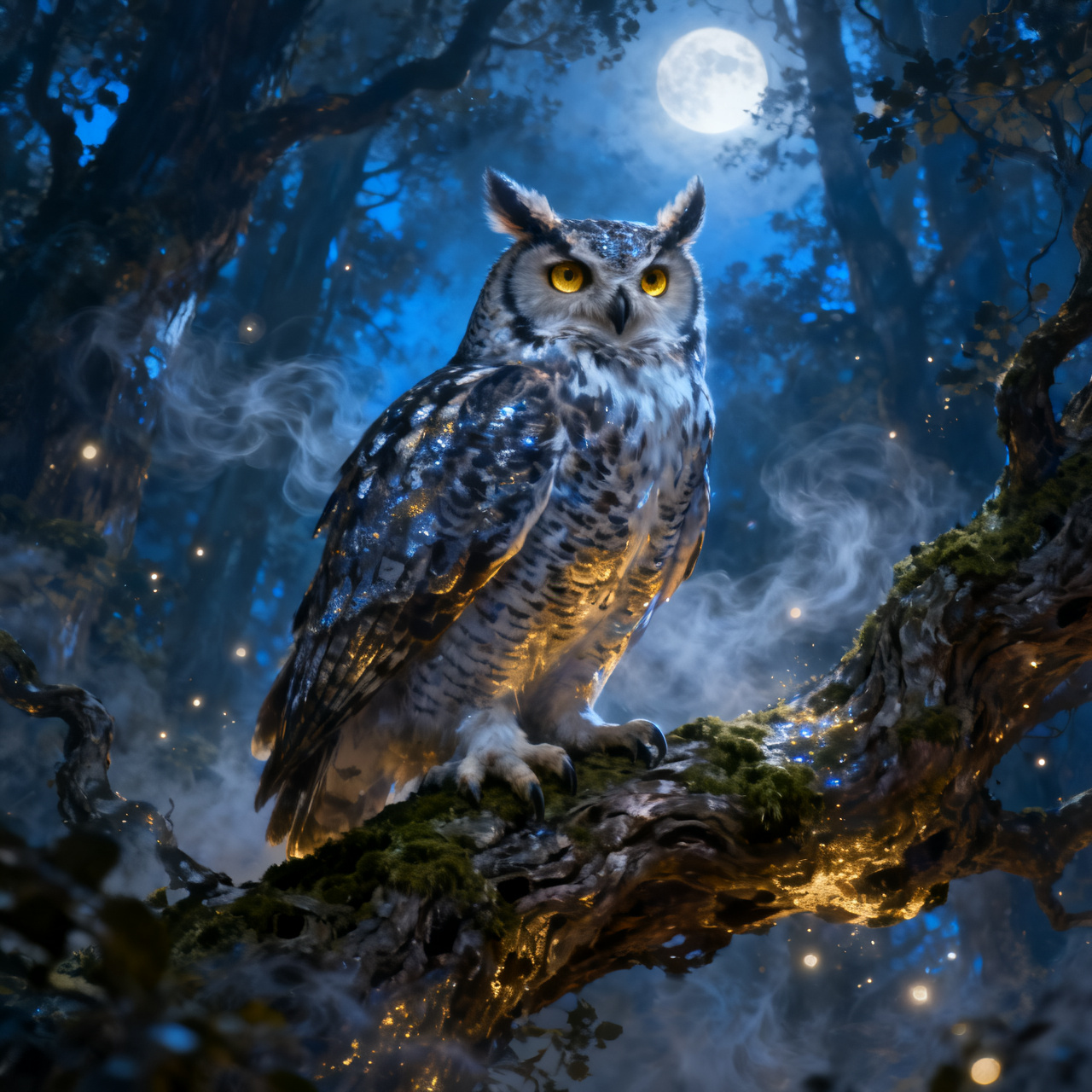
Image Prompt 3: Neck-Tiny Nautical Knot
Prompt: Hyper-realistic, single-needle blackwork tattoo of a figure-eight nautical knot. Placement: Upper nape of the neck, subtly tucked just below the hairline. Size: Approximately 0.75 inches (1.9 cm), extremely discreet. Style: Minimalist fine-line, with intricate detailing of individual rope strands and subtle grey wash shading to create worn texture and depth. Color: Pure black and grey, no additional colors. Symbolic references: Represents connection, journey, and understated resilience. Overall mood: Delicate, elegant, and subtly profound.
Why it works: Tattoo prompts often fail when they describe only the symbol. This one works because it defines placement, scale, technique, color, texture, and symbolism. The phrase “single-needle blackwork” gives the image model a precise visual language, while “upper nape of the neck” prevents the design from becoming a floating tattoo sketch.
Best use cases: Use this prompt style for tattoo previews, minimalist design boards, symbolic body art ideas, and fine-line illustration concepts.
Try it with: Fylia AI Image Generator
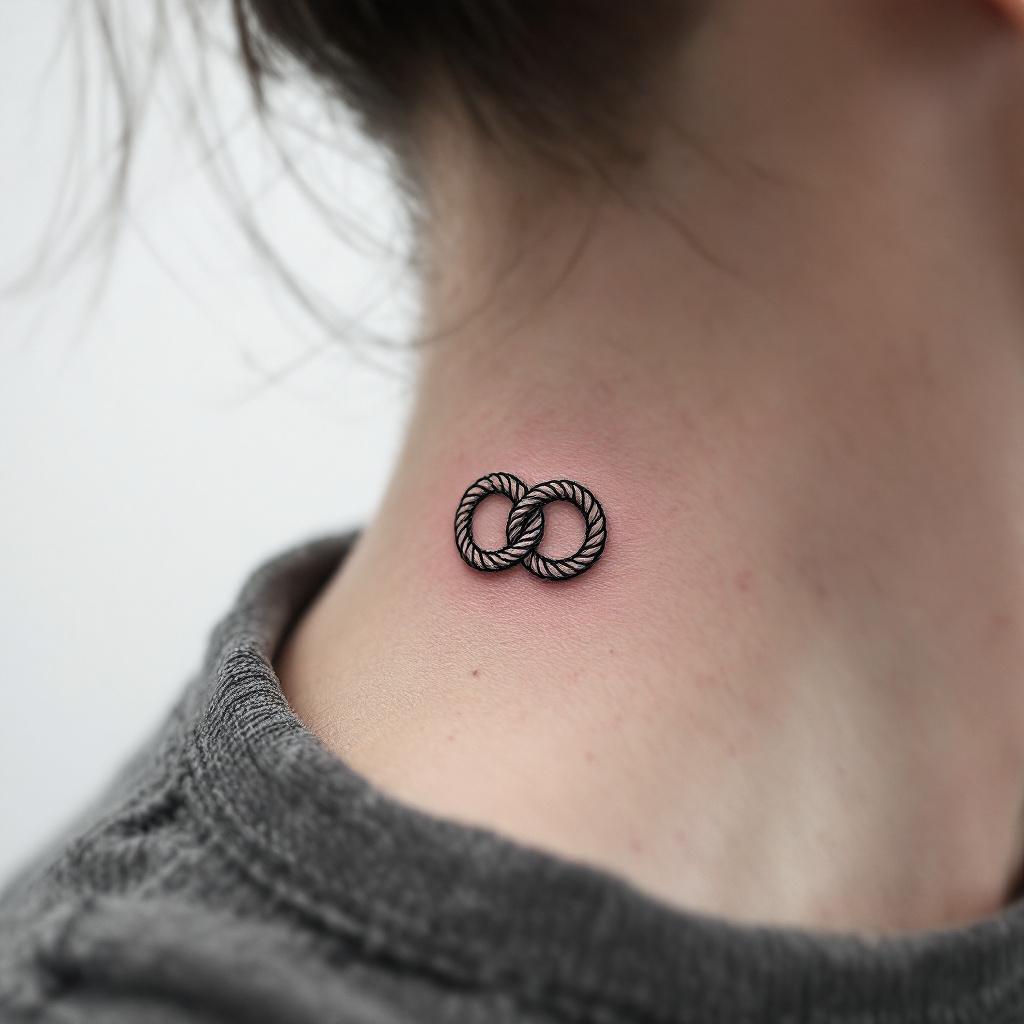
Image Prompt 4: Jean-Paul Sartre
Prompt: Headshot of Jean-Paul Sartre. Characteristic round, thick-rimmed spectacles. Slightly disheveled dark hair, swept back. Profoundly pensive, intellectual gaze behind glasses, subtle furrowed brow conveying deep thought, hint of existential weight. Dramatic chiaroscuro studio lighting, soft key light illuminating his face from the left, subtle rim light highlighting his profile. Medium close-up portrait, slightly low angle, focus on his intense eyes. Shot on an 85mm f/1.4 prime lens, shallow depth of field, creamy bokeh. Ultra-realistic, photorealistic rendering. Highly detailed skin texture, subtle wrinkles. Muted, desaturated color palette, echoing 1950s Parisian intellectual aesthetic. Existentialist mood, cinematic quality.
Why it works: The prompt does not stop at naming the subject. It layers recognizable visual traits, historical atmosphere, camera language, lighting, lens choice, and mood. This makes the result feel like an editorial portrait instead of a flat biography image.
Best use cases: Use this structure for literary portraits, historical thinker visuals, editorial headshots, cinematic character studies, and retro academic aesthetics.
Try it with: Fylia AI Image Generator
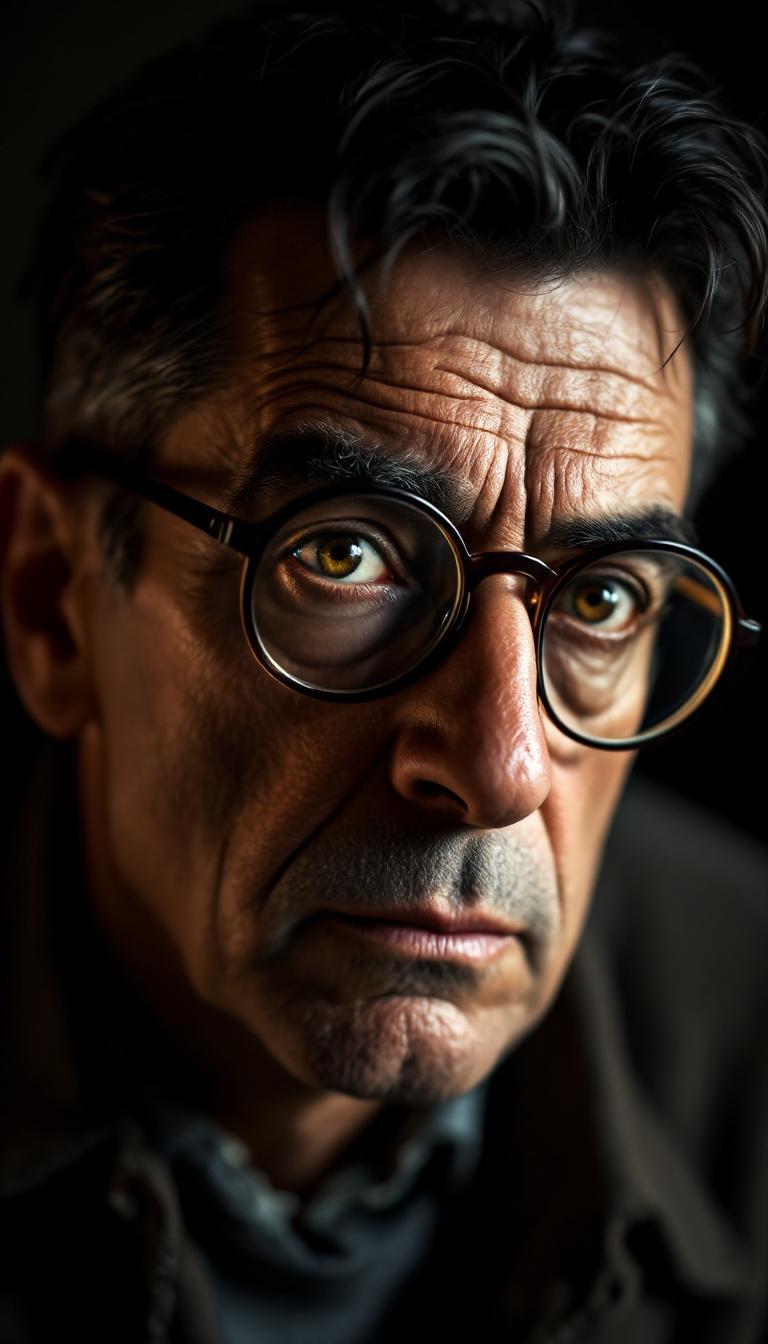
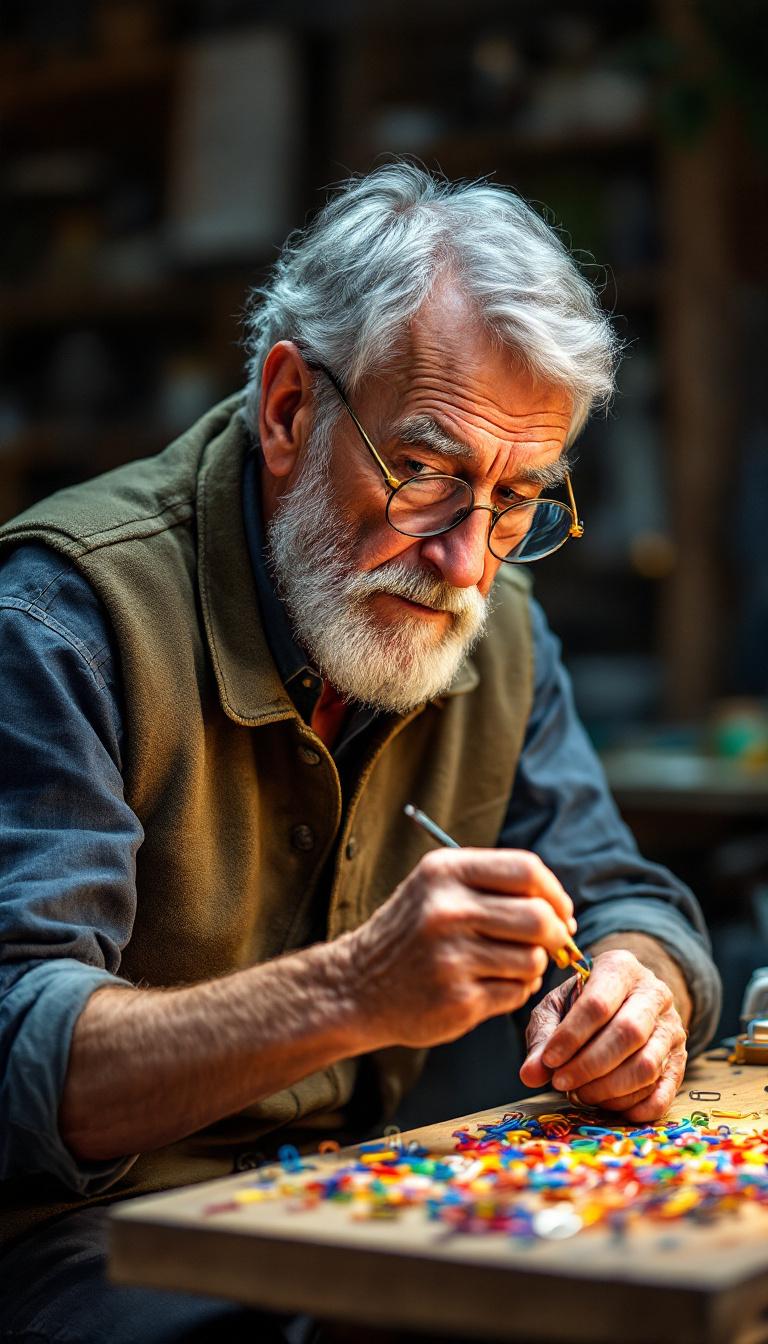
Image Prompt 5: Master Paperclip Sculptor
Prompt: An elderly, sagacious man, keen grey eyes squinted in deep concentration. His face is etched with fine lines, complemented by salt-and-pepper hair, neatly combed back, and a short, tidy beard. He possesses a lean, slightly stooped physique, his long, agile fingers precisely manipulating a shimmering paperclip with delicate tweezers. He wears a practical, muted olive tweed vest over a roll-sleeved denim shirt, dark trousers, and small round spectacles perched low on his nose. His demeanor is one of calm, meticulous artistry. He is positioned at a well-lit wooden workbench, surrounded by an organized array of colorful paperclips and miniature tools, intently crafting an intricate sculpture.
Why it works: This prompt creates a complete scene around a tiny action. It gives the character age, posture, wardrobe, facial details, hand movement, tools, setting, and emotional tone. That level of specificity helps the model understand both the subject and the story.
Best use cases: Use this format for artisan portraits, product-adjacent storytelling, miniature craft scenes, workshop visuals, and character-driven editorial images.
Try it with: Fylia AI Image Generator
How to Adapt These Prompts for Better Results
The fastest way to improve these prompts is to keep the core idea and change only one creative variable at a time. For example, keep the owl prompt intact but change the lighting from “silvery moonlight” to “warm sunrise through fog.” Keep the paperclip sculptor’s workshop setting but change the material from paperclips to copper wire, glass beads, or clockwork parts.
A strong image prompt usually includes five parts: subject, scene, lighting, style, and camera. When your output feels too vague, add one missing part. When the image looks crowded, remove extra adjectives and focus on the main visual action.
For faster prompt expansion, you can also try the Fylia AI Prompt Generator or turn reference visuals into reusable descriptions with Image to Prompt. These tools are useful when you already know the mood you want but need cleaner prompt language.
Related Articles
- GPT Image 2 Prompts 2026: A Comprehensive Guide for Better AI Images
- GPT Image 2 for 4K Visual Design: A Practical Guide for Posters, Brand Assets, and Multi-Image Editing
- Free Image Describer Guide: Turn Any Picture Into Captions, Prompts, and Useful Text
- 10 Best Prompt Ideas for Nano Banana Pro: A Complete AI Image Prompt Guide