Kling has become one of the most talked-about names in AI video generation because it’s built for the way creators actually work: you write a prompt (or upload a reference image), you get a usable clip fast, and you iterate.
Now, attention has shifted to Kling 3.0—the next-generation Kling 3.0 AI video generator that’s being teased publicly and rolling out through early access. But if you’re a creator, the real question is practical: What’s new? What’s still “coming soon”? And what should you use today so you’re not waiting on a rollout?
This article answers that in a viewer-first way. You’ll get the latest public status on the Kling 3.0 video model, a straightforward comparison with the Kling 2.6 video model, and a clean recommendation: use Kling workflows on Flux Pro AI right now—especially Kling 2.6 Motion Control—so you can ship content today and upgrade to 3.0 the moment you have access.
The latest Kling 3.0 status (what’s confirmed)
Let’s keep this simple: Kling 3.0 is being positioned as “coming soon” and is currently associated with exclusive / selected-user preview access in official release messaging.
In practice, that usually means:
- access is staged (selected creators first)
- capacity and regions may roll out gradually
- “coming soon” can be fast—but not guaranteed on your timeline
If you’re publishing or building workflows, the best move is to treat Kling 3.0 as an upgrade path, not a reason to pause production.
What Kling is good at (and why version changes matter)
Kling is popular because its strengths map to real creator needs:
- Text-to-video for rapid concept-to-clip production
- Image-to-video when you want more consistency (character identity, style anchors)
- A generally “cinematic-friendly” look when you prompt camera movement, lighting, and mood
That’s why a major version shift matters: improvements in motion stability, coherence, and control can save you hours of retries—especially for ads, short-form storytelling, or character shots that need to look intentional.
Kling 3.0 new features: what we can say without guessing
People want a feature list when they search Kling 3.0 new features. The most accurate way to frame it right now is:
What’s confirmed (safe, public-level takeaways)
- Kling 3.0 is being framed as a new model era (a “3.0” generation) and is tied to preview/early access language.
- Messaging around the “3.0 era” suggests a push toward a more unified, creator-friendly workflow—less jumping between tools, more “all-in-one” iteration.
What’s reasonable to expect (labelled as expectations)
Based on how top AI video models evolve and what creators typically demand, the most likely improvements in Kling 3.0 AI video generation include:
- better shot stability under motion (less warping during turns and gestures)
- improved consistency for subjects across retries
- more reliable camera movement (tracking, dolly, handheld feel)
- stronger cinematic lighting and depth cues
- a smoother “generate → refine → extend” workflow
These are best treated as a watch list until the full public docs/specs are widely available.
Kling 3.0 vs Kling 2.6: the comparison creators actually care about
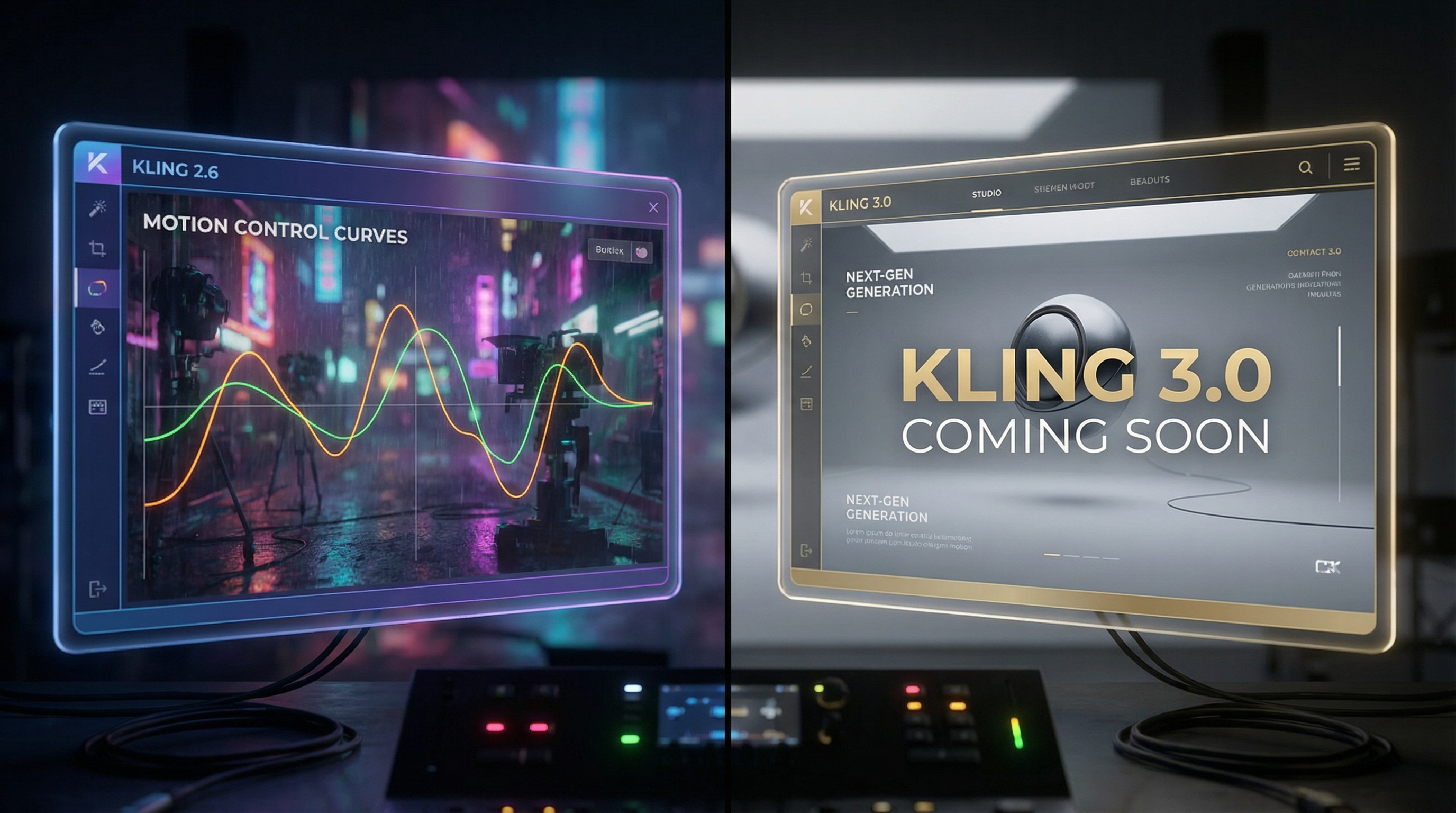
Here’s the core truth: Kling 2.6 is the stable, available baseline you can rely on today, while Kling 3.0 is the newest generation that’s still rolling out in stages.
Instead of pretending 3.0 instantly replaces 2.6, think of it like this:
- Kling 2.6 is your production workhorse.
- Kling 3.0 is your upgrade for newest model behavior once you have access.
A quick, creator-friendly comparison
Availability
- Kling 3.0: staged / early access signals
- Kling 2.6: broadly usable right now via multiple integrations
Best for
- Kling 3.0: newest model behavior and (likely) cleaner generation once fully available
- Kling 2.6: dependable output and repeatable workflows today
Control
- Kling 3.0: likely improving control and consistency, but depends on the final rollout feature set
- Kling 2.6: add Motion Control to solve the biggest pain point—directed movement
Text-to-video: Kling 3.0 vs Kling 2.6 (how to think about it)
Kling 3.0 text to video
When people talk about the Kling 3.0 text-to-video experience, what they really want is a higher hit-rate: fewer tries before the clip looks coherent and cinematic.
While access is still rolling out, the best way to prepare is to build a prompt structure that will transfer well.
A prompt blueprint that stays useful in any version
- Subject (who/what)
- Setting (where)
- Shot type (wide / medium / close-up)
- Camera movement (tracking / dolly-in / handheld)
- Lighting + mood (neon night, golden hour, candlelit)
- One main action (keep it simple)
- Style constraint (cinematic realism, anime, commercial)
Example:
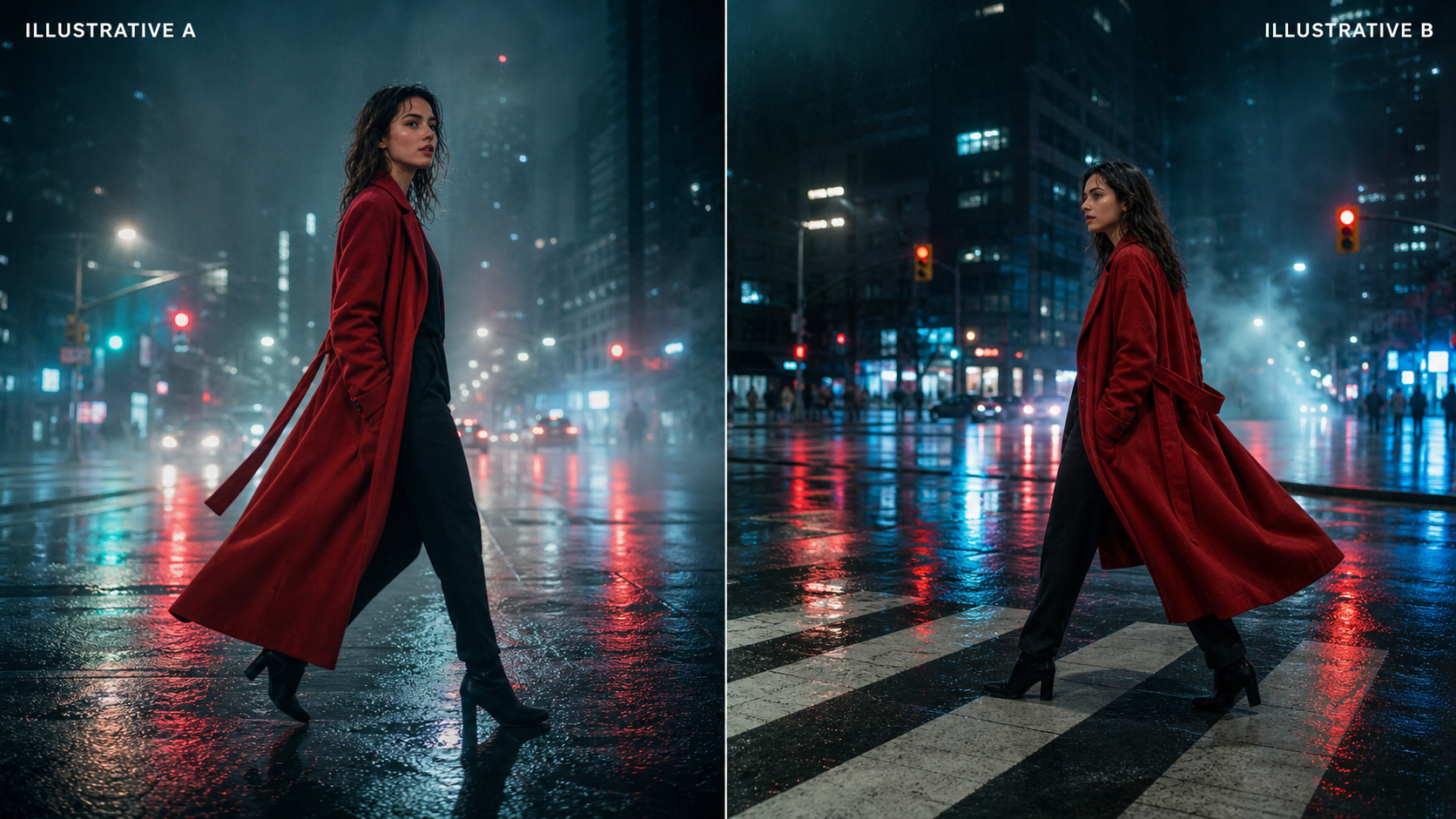
A lone traveler in a rain-soaked neon alley at night, medium shot, slow tracking forward, reflections on wet pavement, soft fog, subtle handheld feel, the traveler turns to look over their shoulder, cinematic film lighting.
That’s the kind of prompt that’s likely to benefit from 3.0 improvements, but already performs well enough in 2.6 for testing.
Kling 2.6 text to video (recommended path on Flux Pro AI)
For readers who want a practical “use it now” answer, route your Kling 2.6 workflow through Motion Control on Flux Pro AI:
Even if your starting point is text-to-video, Motion Control becomes your safety net when you need consistent movement and repeatable results.
Image-to-video: Kling 3.0 vs Kling 2.6 (consistency-first workflows)
Kling 3.0 image to video
For many creators, Kling 3.0 image-to-video is where the upgrade may feel most immediate—because image anchoring is a straightforward way to improve consistency.
The core best practices won’t change:
- Use a clean, high-clarity key image (clear silhouette, good lighting)
- Keep prompts short and motion-focused
- Avoid stacking multiple actions in one shot
Example (image-to-video):
Subtle breathing motion, gentle hair movement in a light breeze, slow dolly-in, soft golden-hour lighting, cinematic tone.
Kling 2.6 image to video (recommended path on Flux Pro AI)
This is especially strong when you combine a reference image with a motion reference video (see next section).
Why Motion Control matters more than most feature lists
If you’ve ever generated a cool clip that almost works—except the body motion drifts, hands melt, or the character moves differently every retry—you already understand why Motion Control is a game-changer.
On Flux Pro AI, the clean recommendation is:
This tool is designed for directed, repeatable movement by referencing both:
- a character/subject image (identity anchor)
- a short motion reference video (movement anchor)
That means fewer “roll the dice” generations and more controlled iteration.
If your audience is ad creators, short-form editors, or character animators, Motion Control is the practical feature that immediately improves success rate.
To satisfy the keyword set (and keep it natural):
How to get a “Kling cinematic video” look (1080p helps, but prompts matter more)
Search intent here is clear: people want Kling 3.0 cinematic video and Kling 3.0 1080p AI video output that looks polished.
Resolution is nice, but “cinematic” usually comes from three things:
1) Composition
- One clear focal subject
- Depth layers (foreground + subject + background lights)
- Avoid crowded scenes until you’ve nailed consistency
2) Motion
- One main action per shot
- Slow camera moves read more “film” than frantic spins
- If you want action, split it into separate shots and edit later
3) Lighting
- Name one key light source (neon sign, window light, candle)
- Add atmosphere (fog, dust, rain reflections) to boost depth and realism
Mini prompt gallery for cinematic results
- Neon alley tracking shot
Night city alley, neon reflections on wet ground, slow tracking forward, light fog, cinematic realism.
- Product tabletop commercial
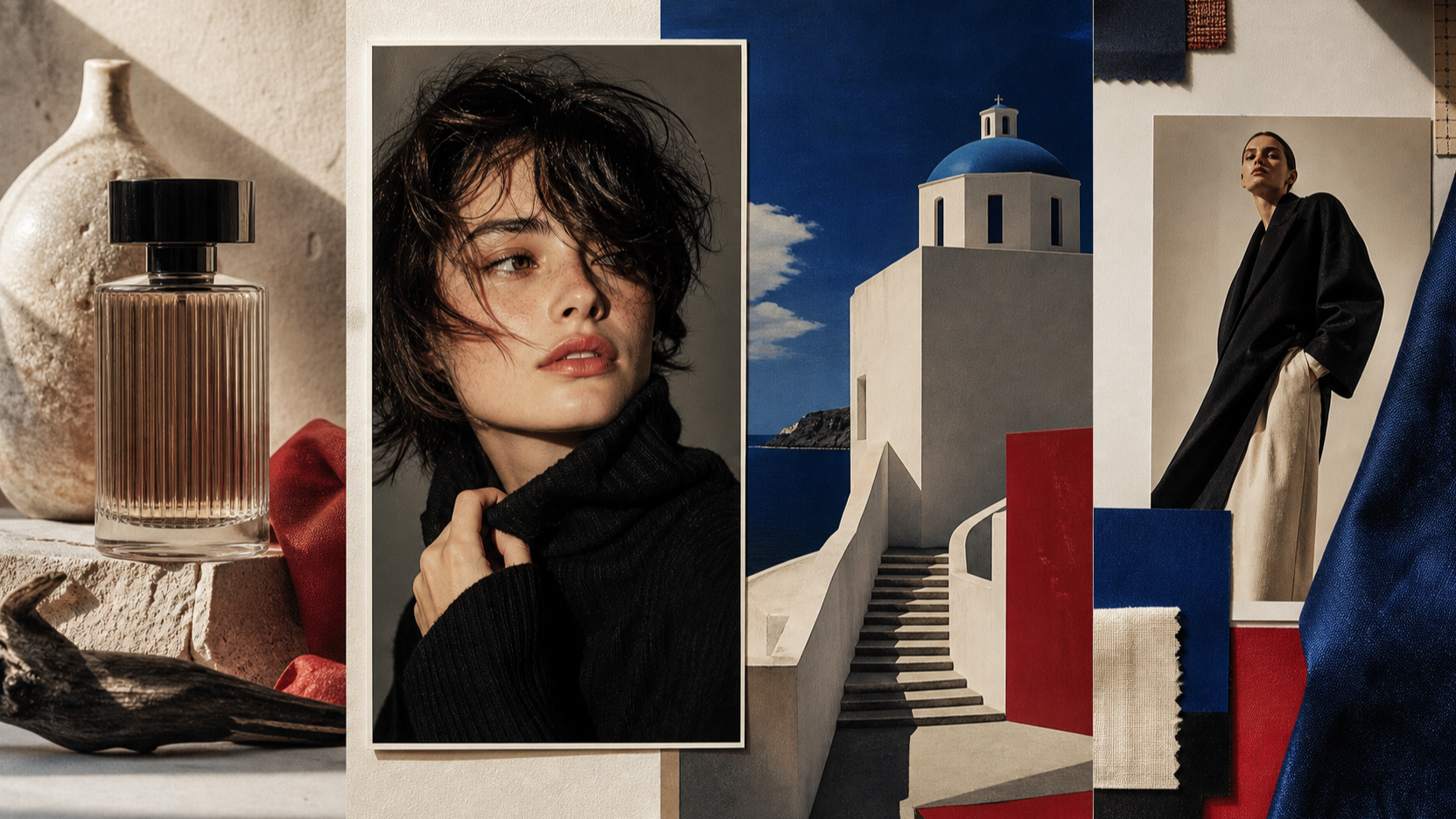
Minimal studio tabletop, softbox key light, slow dolly-in on product, clean commercial lighting, shallow depth of field.
- Portrait close-up
Close-up portrait, soft window light, subtle breathing motion, gentle head turn, cinematic film grain feel.
- Wide establishing shot
Wide shot of mountain village at sunrise, slow drone-like glide, warm haze, cinematic atmosphere.
- Stylized anime pan
Anime-style street scene, smooth lateral camera pan, strong rim lighting, clean outlines, subtle motion.
These prompt patterns will still matter when you step up to the Kling AI 3.0 video generator—and they’re testable today in Kling 2.6.
Recommended workflow on Flux Pro AI (what to do today)
If you want to publish a viewer-first recommendation, keep it practical:
-
Use Kling 2.6 Motion Control on Flux Pro AI for directed movement and repeatable outputs:
-
Build your prompt library now (shot types, camera moves, lighting setups).
-
When Kling 3.0 access lands for you, run side-by-side comparisons:
- same prompt
- same reference image (for image-to-video)
- same motion reference (for motion-controlled shots)
That gives you a real upgrade decision based on outcomes, not hype.
FAQ
Is Kling 3.0 available to everyone yet?
Not necessarily. Public messaging emphasizes preview / early access, which typically means staged rollout.
Should I wait for Kling 3.0?
If you’re creating content, don’t wait. Use Kling 2.6 now, build repeatable workflows, then upgrade to 3.0 when access becomes available.
What’s the easiest way to get stable character motion?
Use Kling 2.6 Motion Control on Flux Pro AI:
Final takeaway
Kling 3.0 is the next-generation model in Kling’s AI video roadmap, but it’s still in a “coming soon / early access” phase for many users. Meanwhile, Kling 2.6 remains the reliable baseline you can use today—especially when you pair it with Motion Control for directed movement.
If you want the most practical recommendation right now, start here and build your workflow:
Then, when the Kling 3.0 video model becomes available to you, you’ll be ready to upgrade in minutes—not weeks.