Images are everywhere, but useful text is still what makes them searchable, reusable, and easier to work with. That is why a tool like AI image describer has become more practical than many people expect. It does not just look at a picture and list a few visible objects. It helps turn an image into a description, a caption, a prompt, a marketing angle, or a clearer explanation of what is happening in the frame.
For creators, sellers, students, marketers, and everyday users, that is a real advantage. Instead of staring at an image and trying to manually explain it, you can upload it, choose the type of output you need, and get usable text in seconds. Better still, you can then take that text into other creative tools, whether you want to write social content, build a product listing, generate a prompt, or improve visual notes.
This guide explains what the tool does, where it is most useful, how to get better results from it, and which other free tools on Flux Pro Web are worth trying next.
What image description really means today
A lot of people still think image description is just object recognition. In the past, that often meant a system could say “dog,” “car,” or “tree,” but not much more. Modern AI image description tools are much more useful because they can describe the scene in a way that actually helps a human being.
That means the output can include the setting, the arrangement of objects, the tone of the image, the likely purpose of the photo, visible actions, and the kinds of details that matter in real content work. If the image is a product photo, the description can help you build product copy. If it is a lifestyle image, it can help with caption writing. If it is a reference image, it can help turn visual ideas into generation prompts.
In other words, image description now sits between visual understanding and text creation. It helps bridge the gap between seeing an image and doing something useful with it.
What the Flux Pro Web tool can do
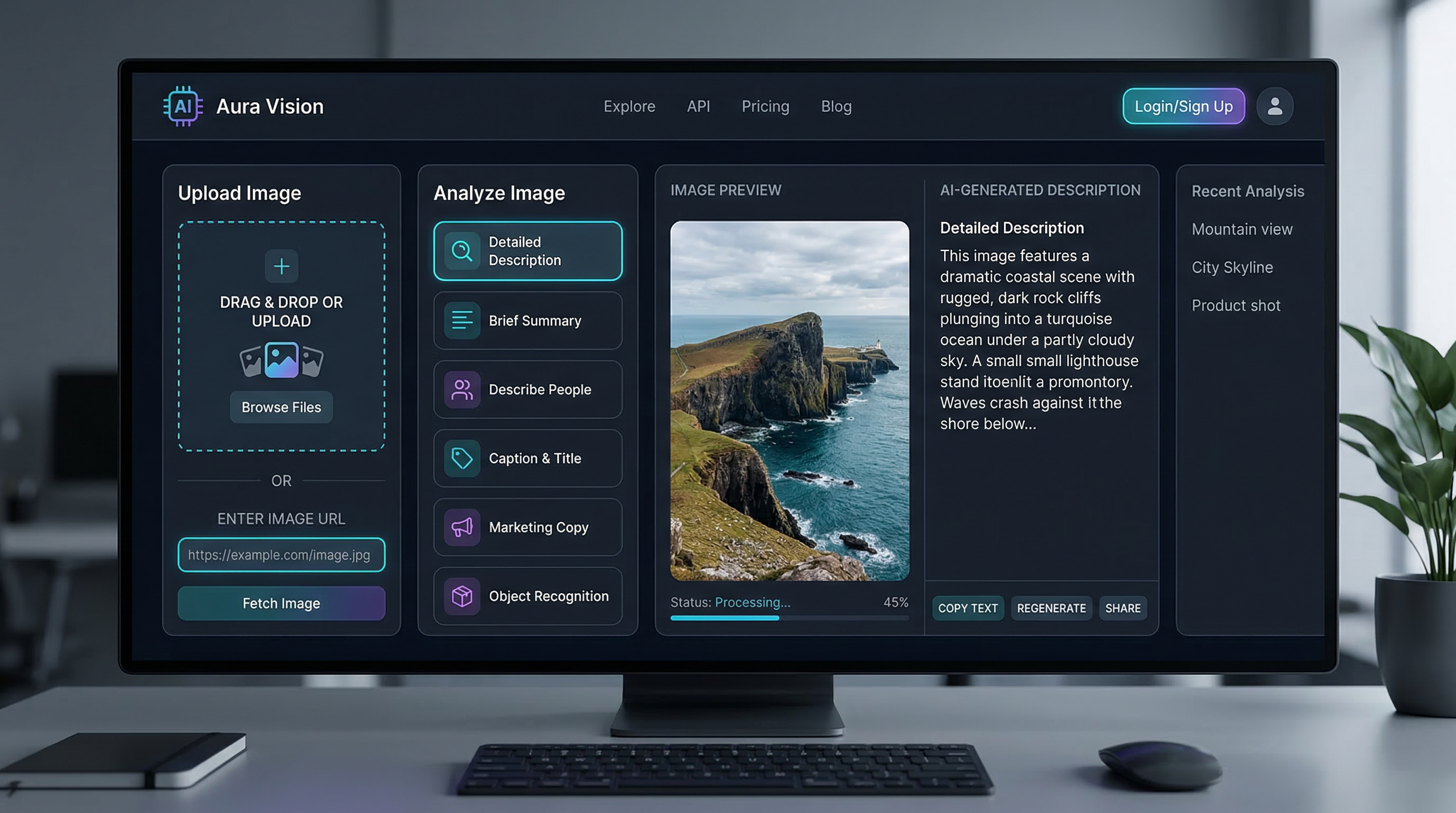
The strength of this AI image description generator is that it is not limited to a single output style. Instead of forcing every image into one type of answer, it gives users several modes that match different goals.
A detailed description mode is useful when you want a fuller explanation of the image, including objects, layout, visual relationships, and general atmosphere. A brief description mode is better when you want a fast summary without too much extra detail. A people-focused option is useful for describing visible features, poses, clothing, or interactions in images where human subjects matter. Caption title mode helps users quickly turn an image into something social-friendly or headline-ready. Marketing copy mode is especially practical for sellers, advertisers, or content teams that want a promotional angle instead of neutral analysis. Object recognition is the more direct identification mode, while a custom question field gives the tool extra flexibility.
That combination makes it more practical than a basic recognition tool. It is not just telling you what is in the image. It is helping you decide what kind of text you need from the image.
How to use the tool step by step
Using the tool is straightforward, which is part of its appeal. Most users will only need a minute or two to understand the workflow.
Start by uploading an image or pasting an image URL. That makes it easy to work with both local files and online references. Next, choose the output mode that best matches your goal. This step matters more than many people think. If you want a social media result, a caption-focused output may be more useful than a detailed scene breakdown. If you want to learn from a reference image, a longer descriptive output will usually help more.
After that, choose your language and generate the result. Once the text appears, you can copy it directly, refine it, or use it as input for other tools.
A good beginner workflow is simple: start with a detailed description, then try the same image in caption mode or marketing mode. That lets you see how different output types can turn one image into different kinds of usable content.
Best use cases for an image describer
The most obvious use case is caption writing. Many people have a good image but do not know how to describe it in a clean, appealing way. A strong AI image describer can give you a starting point much faster than writing from scratch.
Another strong use case is product content. If you sell online, manage listings, or create catalog pages, a good image description can help you turn a plain visual into more informative product copy. That is especially useful when you need multiple variations for marketplaces, store pages, or ad creatives.
It is also useful for creative prompt building. A lot of users already understand that a good image can inspire another image, but they struggle to convert what they see into prompt language. A description tool can act like a translator between visual inspiration and prompt structure.
Accessibility is another reason these tools matter. Even when users are not writing formal alt text, being able to summarize an image clearly can support more accessible communication. Students, researchers, and content teams can also use image description for quick note-taking, reference tagging, or visual analysis.
Then there is idea extraction. Sometimes the real value of an image is not the image itself, but the concept behind it. A description can help isolate that concept quickly.
How to get better results
The easiest way to improve results is to choose the right mode before you click generate. A generic output is not always bad, but a better-matched mode usually produces better text. If your goal is a product pitch, use marketing copy. If your goal is understanding visual details, use detailed description. If your goal is prompt creation later, start with the richest descriptive mode you can.
Image quality matters too. Clear, well-lit, well-framed images are easier to describe accurately than cluttered, blurry, or heavily compressed ones. If the image contains many small elements, crop or simplify it first when possible.
Custom questions can also make a big difference. Instead of asking the tool to describe everything, ask a more purposeful question. What is the main object? What is the mood of this image? What kind of product audience does this photo suggest? What would make a good short caption for this visual? Specific questions often produce more useful outputs than broad ones.
Finally, treat the output as a first draft, not a final verdict. The best use of an AI image description workflow is often to speed up thinking, not replace it entirely. Edit the result so it matches your voice, your brand, or your intended platform.
Why this is more practical than basic image recognition
Basic image recognition is helpful when you only need identification. But many users need more than that. They need text that can move into another workflow.
That is why a proper AI image description generator is more useful for creators and businesses. It can support analysis, but it can also support action. You can turn a description into a prompt, a post caption, a product blurb, a visual note, or a content draft.
This is where the tool becomes more than a novelty. It becomes a bridge between understanding an image and creating with it.
Other free Flux Pro Web tools worth using next
One of the best things about using this kind of tool on Flux Pro Web is that it naturally connects to other free workflows.
If you want to turn a visual reference into better generation instructions, try Image to Prompt. It is the most natural follow-up when you want to move from description into image creation.
If the image itself needs cleanup before reuse, Background Remover is a practical next step. It can help isolate products, people, or design elements for cleaner outputs.
If the description gives you a concept but you still need a stronger prompt, Flux AI Prompt Generator can help turn rough ideas into more structured prompt language.
If the image is too small or too soft for reuse, Free Image Upscaler is another useful companion tool. And if you need to prepare files for publishing, editing, or sharing, Flux Image Format Converter helps make that step easier.
The smoothest workflow is often simple: describe first, then refine, convert, enhance, or prompt from there.
FAQ
What is the difference between image recognition and image description?
Image recognition mainly identifies visible elements. Image description goes further by explaining the scene, relationships, mood, or likely purpose of the image in natural language.
When should I use an image describer instead of an image generator?
Use a describer when you already have an image and want to understand it, summarize it, caption it, or turn it into usable text. Use a generator when you want to create a new image from text.
Can this tool help me write prompts?
Yes. A good description can become raw material for prompt writing, especially if you combine it with a prompt-focused tool afterward.
Is it useful for product photos?
Very much so. Product visuals are one of the best use cases because the output can help with copywriting, listing support, tags, and marketing angles.
What kind of custom questions work best?
Questions with a clear purpose usually work best. Ask about mood, product positioning, likely caption angles, main objects, or useful prompt details.
Final takeaway
A free image describer is one of the most underrated AI utilities right now because it solves a very practical problem: turning visuals into usable text. That text can then power captions, prompts, listings, notes, or creative ideas.
If you want a simple starting point, AI image description on Flux Pro Web is a smart place to begin. It is flexible enough for everyday users and practical enough for content creators, marketers, and sellers. Even better, it fits naturally into a wider set of free tools on the same website, which makes the whole workflow feel more connected.
The real value is not just that the tool can describe an image. It is that the description can become your next step.
Related Articles
- Master FluxPro Image to Prompt Tool
- Convert Images to Prompts Instantly with FluxPro's AI Tool
- How to Edit Images with Flux Kontext AI: The Smarter Way to Transform Photos
People Also Read
- Seedream 5.0 AI Image Editor Guide on HeyDream AI (2026)
- Exploring HiDream I1 AI Image Generation: Models, Usage, and Recommended Use Cases
- Seedream 5.0 Lite vs Seedream 4.5 on DreamMachineAI: Practical Differences and Best Workflows
- Nano Banana Pro on DreamMachine AI: A Practical Way to Create Better AI Images
- VideoWeb AI Image Generator 2026: The Creator Switchboard for Fast-to-Final Images
- How to Use Nano Banana 2 for AI Image Generation and Editing
- The Flux AI Image Generator Guide 2026: Best Models Compared & How to Use
- Introduction to the Image to Prompt Generator by Flux AI
- How to Use Sea Imagine AI’s Image Generator: A Beginner-Friendly Tutorial
- The Seedream 5.0 AI Image-to-Image Analysis Guide 2026